2.2.7 Groove Browser
The Groove Browser is an overlay for loading groove presets that can be opened by clicking the Groove Menu located in the Groove Engine area (see SECTION 2.2.6 GROOVE ENGINE). To step through presets without opening the overlay, use the Previous Groove and Next Groove arrows flanking the Groove Menu.
The Groove Browser contains a Category column that holds exclusive grooves created by Jimmy Jam organized by genre, and a User Grooves category where all your saved groove presets are stored.
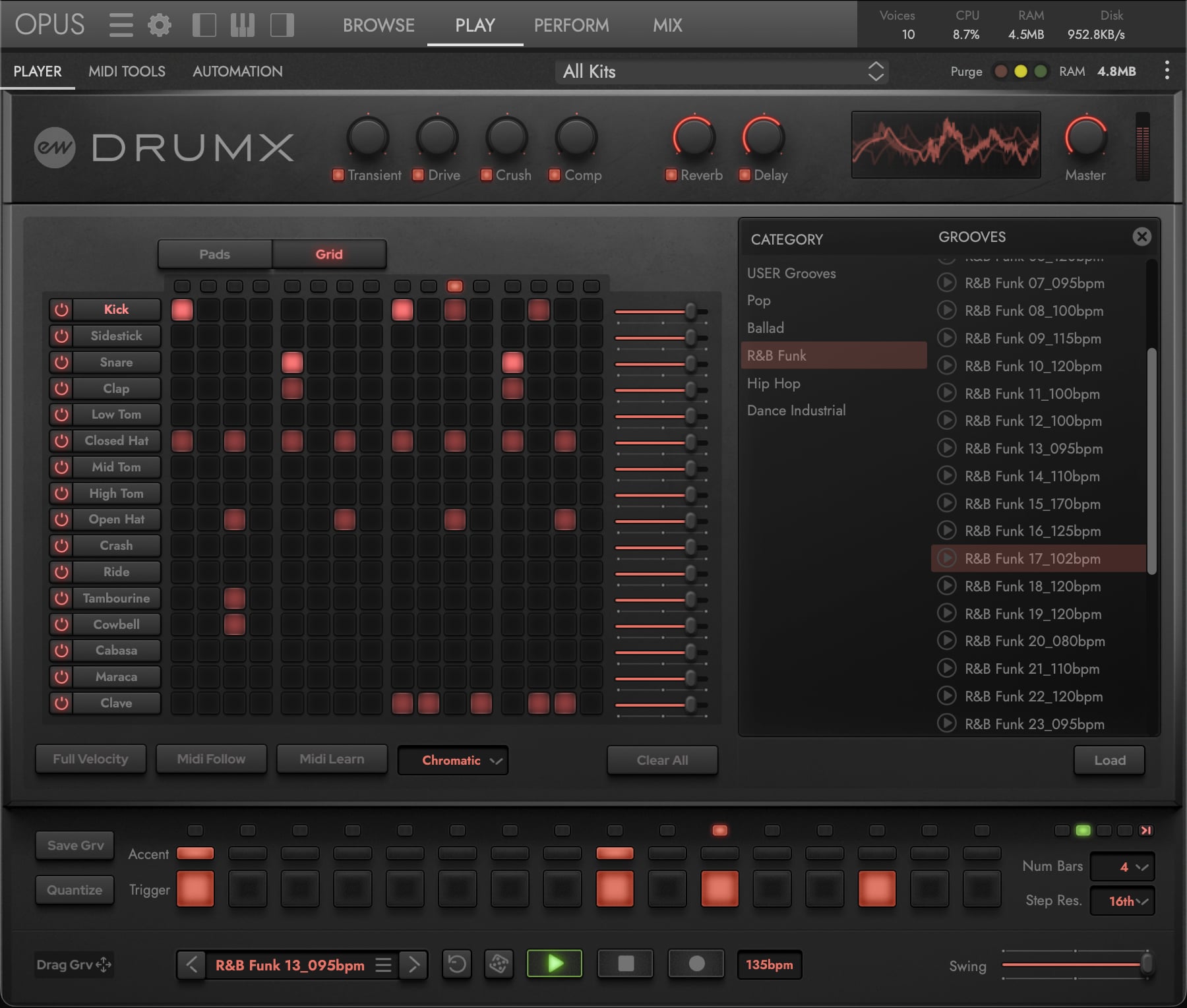
A Jimmy Jam Grooves
Select a genre within the Category column, then select a preset from the Grooves column to find a starting point. Use the Preview (Play) button to audition a groove, then click the Load button in the lower-right corner to apply it to the sequencer. Keep the Groove Browser open to continue auditioning until you’re happy with your selection, then click the (x) button in the top-right corner (or click on either the Pads or Grid buttons) to close it.
PLEASE NOTE: Every Jimmy Jam Kit instrument is automatically embedded with its signature groove when it is loaded; but the Groove Browser takes this further by allowing you to swap the groove independently of the loaded kit, mixing any groove with any kit.
B User Grooves
The User Grooves category populates with a list of your saved groove presets. You can save a groove preset by clicking the Save Groove, which also stores the global swing, step resolution, pattern length, per-step accent (velocity) data, along with the full sequencer note data. Use the Load button to load the groove preset, and the Remove button (that only appears when User Grooves is selected) to delete it (which will prompt a confirmation dialog to ensure you wish to do so).