1.2.2 User Interface
The Opus user interface is divided into 6 main areas (some initially hidden from view).
At the top is the Navigation Bar Area that contains important menus and buttons to access all the main areas of the Opus user interface. From left to right that includes:
- The Opus Button prompts an ‘About’ window to appear with software information.
- The Main Menu Options (horizontal lines) are related to saving and opening instruments and performances, and the Settings Menu Options (gear icon) contain preferences, audio and MIDI setup, and more.
- The Interface Buttons show and hide parts of the Opus user interface: the Instrument Rack (left), the Virtual Keyboard (middle), and the Inspector (right).
- The Page Buttons switch the Main Display Area between the Browse, Play (shown), Perform, and Mix pages.
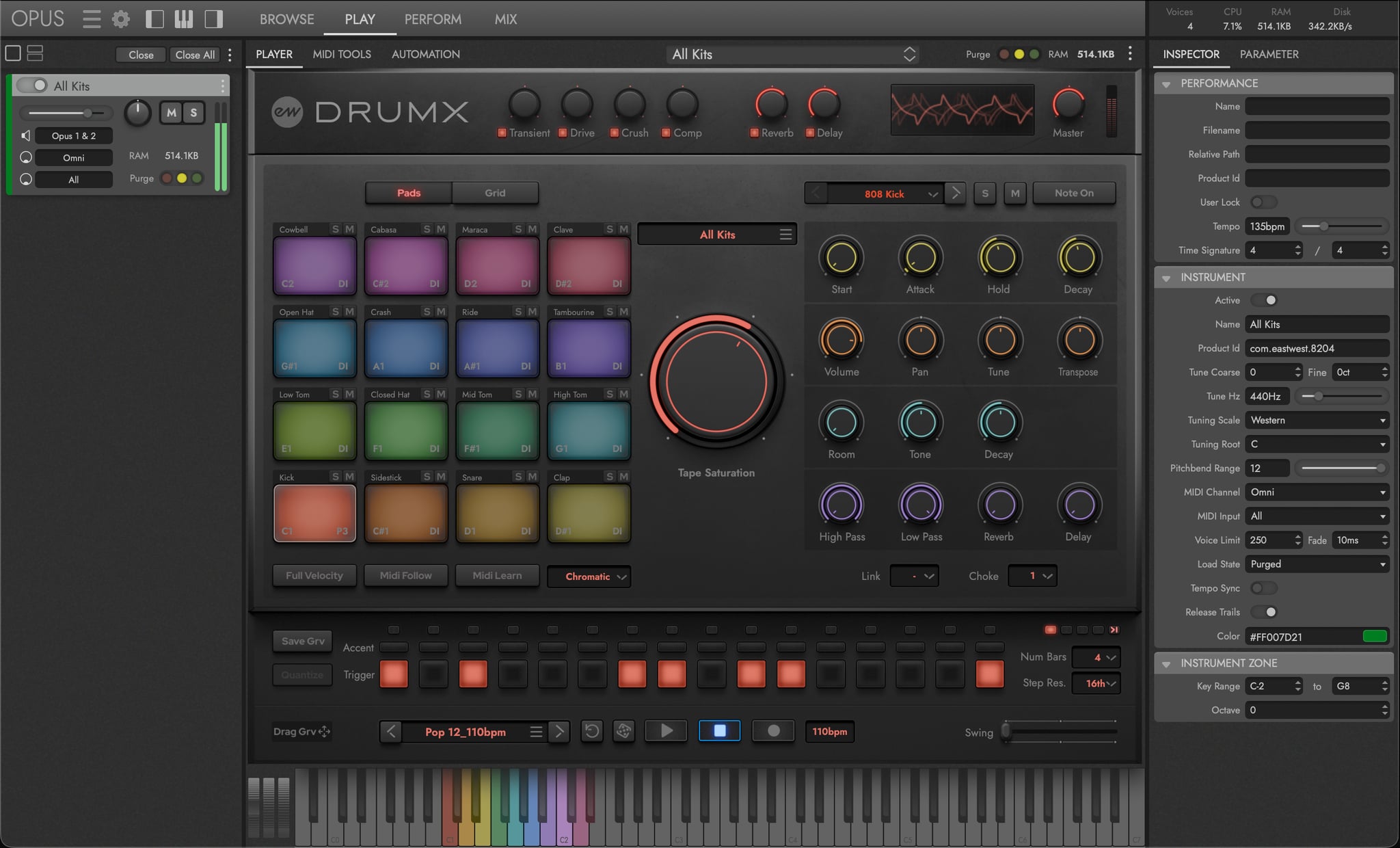
The Instrument Rack Area holds each loaded instrument in its own rack space, viewable in a Full Rack (default) or Half Rack layout. It exposes per-instrument controls for volume, pan, mute, and solo, along with audio output, MIDI channel, and MIDI port menus for managing multi-instrument setups, plus a Purge control to manage memory per instrument. See SECTION 2.1.2 INSTRUMENT RACK for full coverage.
The Virtual Keyboard Area along the bottom of the interface shows the currently selected instrument’s sampled key range — for DrumX drum kits, that’s the 16 pads mapped from C1 to D#2 — along with a pitch wheel, modulation wheel (CC 1), and expression wheel (CC 11). Click any key to trigger the mapped drum, useful for auditioning without a connected MIDI controller.
The System Usage Area provides real-time stats on the number of simultaneous voices, CPU usage, RAM usage, and disk usage — a running gauge of how much of your system’s resources DrumX is consuming. Keep an eye on these when loading multiple instruments or heavy kits; use the Purge controls in the Instrument Rack to reclaim memory from instruments you’re not actively playing.
The Inspector Area shows information pertaining to the current selection. On the Browse page, that’s a brief description of the highlighted instrument (the Description Box); on the Mix page, it’s the selected channel’s details. See the Opus software manual for more information.