2.1.2 Instrument Rack
Click the Instrument Rack Button in the Navigation Bar to open (and close) the Instrument Rack that appears on the left side of the Opus user interface. It contains each loaded DrumX instrument in its own rack space with a variety of controls and options outlined below.
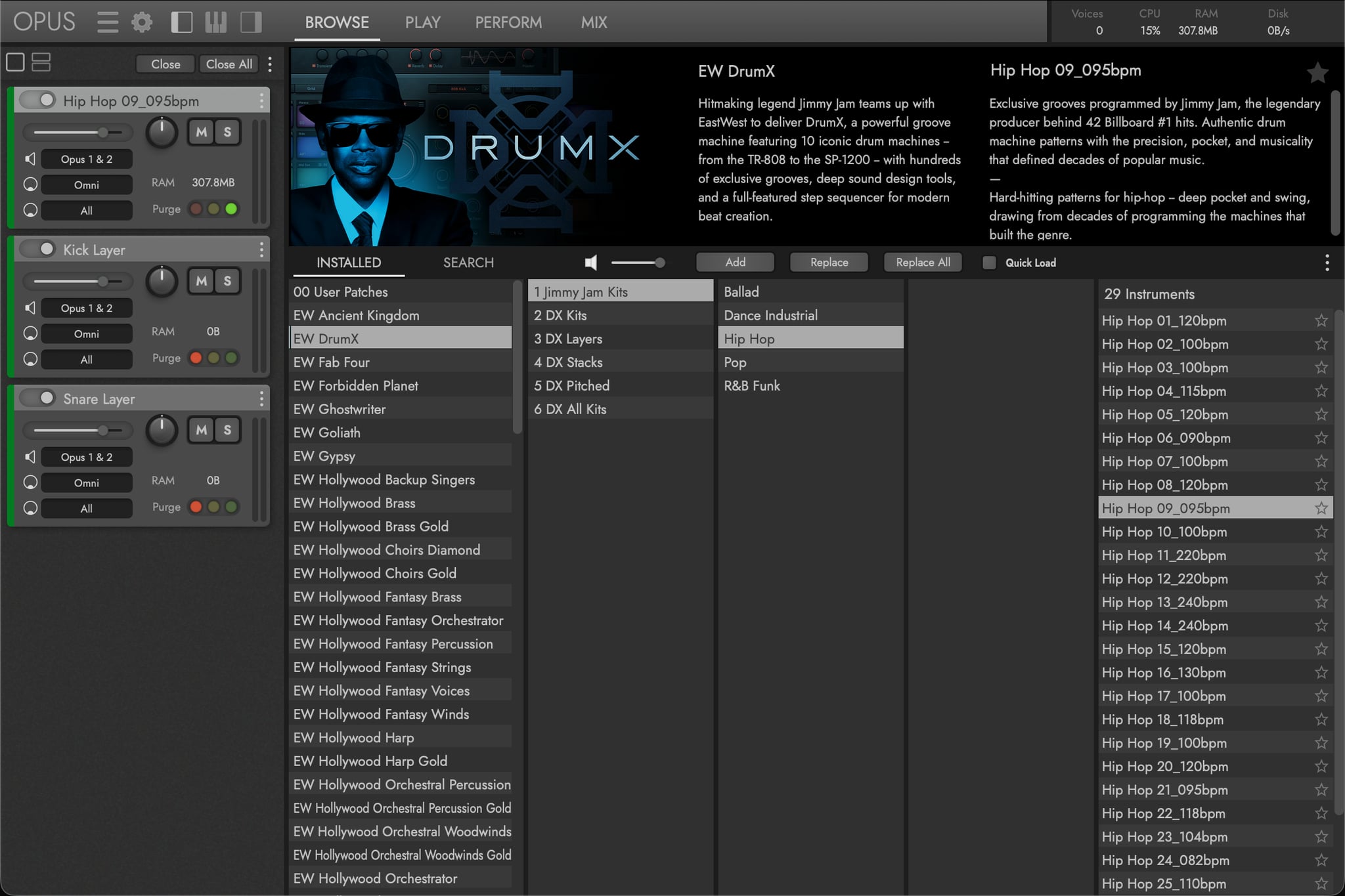
A Instrument Rack Toolbar
The Instrument Rack can be viewed in either the Full Rack size, to view instruments with all available controls (default), or the Half Rack size, where only the essential controls are available.
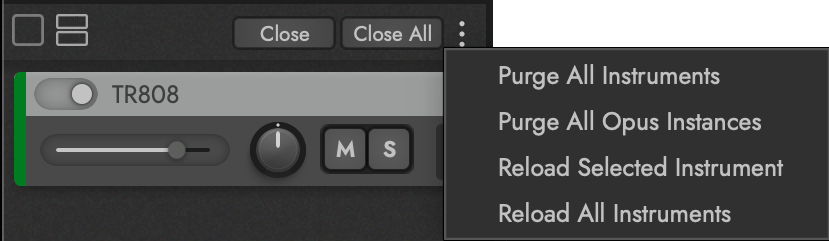
Use the Close button to remove the currently selected instrument, or Close All to remove all loaded instruments. The Ellipsis Menu on the right opens a list of additional instrument actions, including Purge All Instruments, Purge All Opus Instances, Reload Selected Instrument, and Reload All Instruments.
B Instrument Rack Controls
Below those options, every rack space exposes the core mix controls for its instrument: Volume, Pan, Mute, and Solo. These stay visible in both the full- and half-rack views so you can balance loaded instruments at a glance.
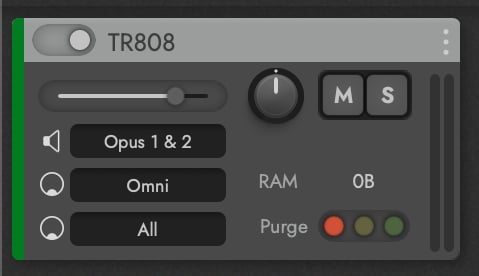
Use the Audio Output, MIDI Channel, and MIDI Port menus (listed from the top) to manage multiple loaded instruments. Load a DX Kit on one rack space and a Kick Layer on another, then use the MIDI channel and input settings to decide how each responds to incoming MIDI. For example, route both to the same channel for layered playback, or split them across channels for independent control from different MIDI sources.
Use the Purge control to change an instrument’s memory footprint. A red button removes the instrument from memory; a yellow light indicates notes are being loaded as you play; a green button loads the instrument fully into memory.
OPUS SOFTWARE MANUAL | SECTION 2.1.2 INSTRUMENT RACK for more about managing loaded instruments, output routing, and the Perform page.