2.2.6 Groove Engine
The Groove Engine spans the bottom of the DrumX interface and houses all the controls for programming, playing back, and managing step sequences. At its heart is a step-level view of the currently focused pad’s sequence; the rest of the strip is organized into groups of controls that apply globally to the whole sequence.
The five functional areas — Focused Pattern, Page Navigation, Global Groove Controls, Groove Browser Controls, and Transport Controls — are described in the sections that follow.
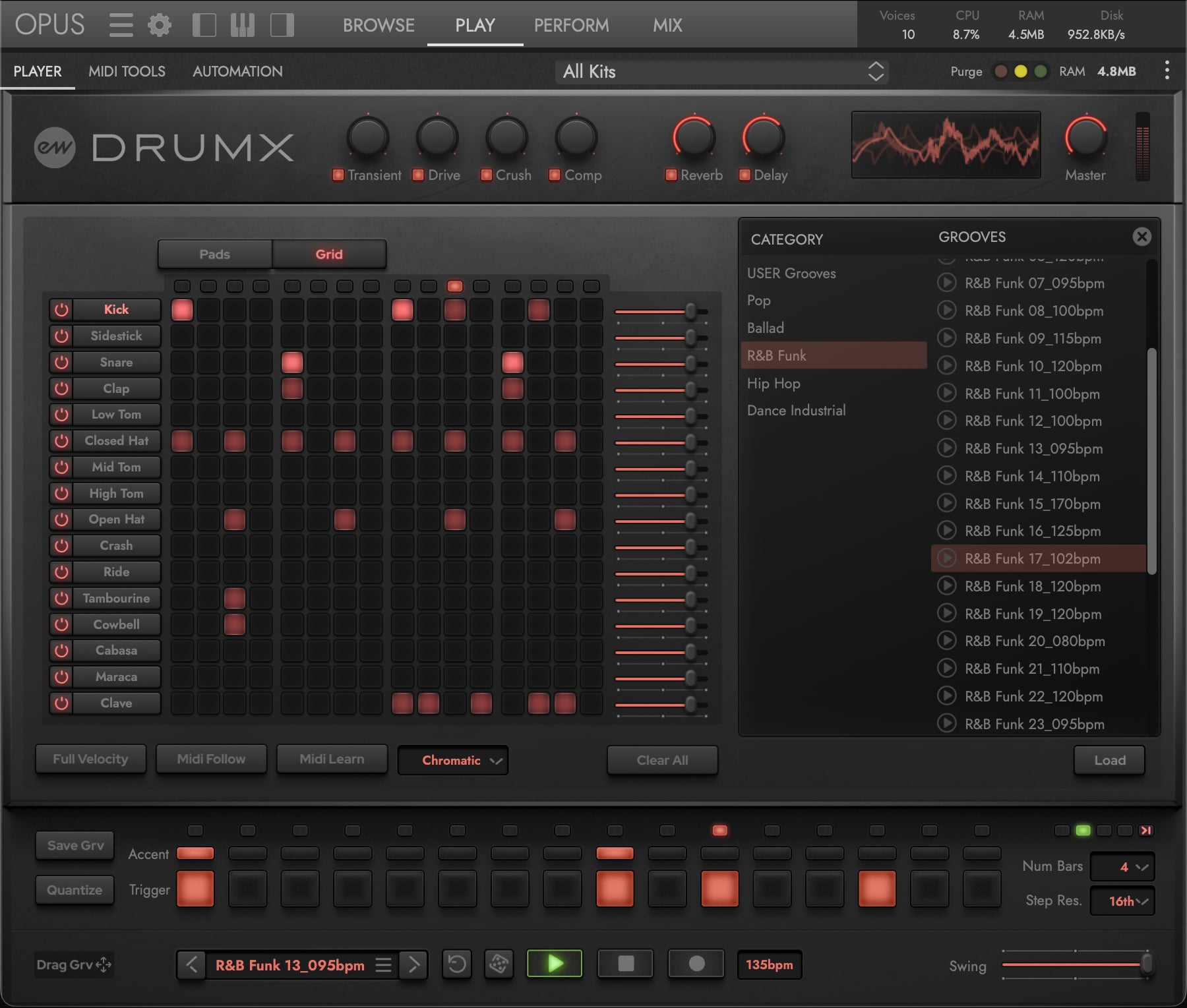
A Focused Pattern
The only per-pad area of the Groove Engine. Everything here operates on the currently focused pad’s sequence.
- Step Position — Along the top of the step row, LEDs indicate the current playback position during sequencer playback.
- Accent Steps — Sit above the trigger row, one per step. Toggle accent on individual steps. Accented steps play at velocity 127; normal (un-accented) steps play at the default velocity of 100. Toggling accent on an empty step also activates the step itself.
- Trigger Steps — Toggle individual steps on or off for the focused pad. Lit buttons indicate active steps. Click to toggle; click-and-drag to paint multiple steps.
- Remove — Clears the focused pad’s step sequence. Located immediately to the left of Random.
- Random — Generates a random pattern for the focused pad.

B Page Navigation
- Pages — Radio buttons to navigate between pages when the pattern length is more than 1 page. The number of steps per page depends on the Step Resolution setting (8 steps at 8th notes, 16 steps at 16th notes, 32 steps at 32nd notes).
- Follow — When enabled, the page display automatically follows the current playback position.

C Global Groove Controls
Global settings that shape the whole sequence across all tracks.
- Step Resolution — Choose the step grid resolution: 8th, 16th (default), or 32nd notes. Changing the resolution affects the number of steps per page and the total pattern length. At 8th note resolution, 16 steps spans 2 bars; at 32nd note resolution, 16 steps spans half a bar.
- Number of Bars — Sets the pattern length from 1 to 4 pages. The total number of steps depends on both this setting and the Step Resolution.
- Swing — Global swing amount (0-100%). A single swing value applies to the whole sequence, shifting odd-numbered 16th-note steps forward by up to 1/3 of the step length to create a human feel. Disabled at 1/8 step resolution.
- Quantize — Aligns recorded or imported MIDI events to the nearest grid position. Resolution options: 1/32, 1/16, 1/8, 1/4, 1/2.
- Save Groove — Saves the current pattern (all tracks) as a user groove preset.
- Drag Groove — Drag this element to export the current pattern as a MIDI file to your DAW or desktop.

D Groove Browser Controls
- Groove Menu — Opens the Groove Browser overlay. Displays the name of the currently loaded groove.
- Previous Groove / Next Groove — Step through groove presets without opening the browser.

E Transport Controls
- Play — Start sequencer playback.
- Stop — Stop sequencer playback.
- Record — Toggle real-time MIDI recording into the step grid. Play MIDI notes while the sequencer runs to record a pattern in real time.
- Tempo — Displays the current tempo in BPM. When synced to the DAW, shows the host tempo (read-only). When unsynced, the tempo is editable (range: 20-999 BPM, default: 123).
- Sync — Toggles sync to host DAW. When loaded as a plug-in, the sequencer follows the host’s tempo and transport; otherwise it runs independently.

CONTINUE READING | SECTION 2.2.7 GROOVE BROWSER for a full walkthrough of the Groove Browser overlay and its 214 exclusive Jimmy Jam grooves.