2.1.1 Instrument Browser
The Browse page provides two ways to find and load DrumX instruments. Installed Mode organizes libraries by their original factory folder structure, while Search Mode lets you filter instruments by attribute tags. A toolbar above the column view offers controls that apply in both modes.
A Description Box and Toolbar
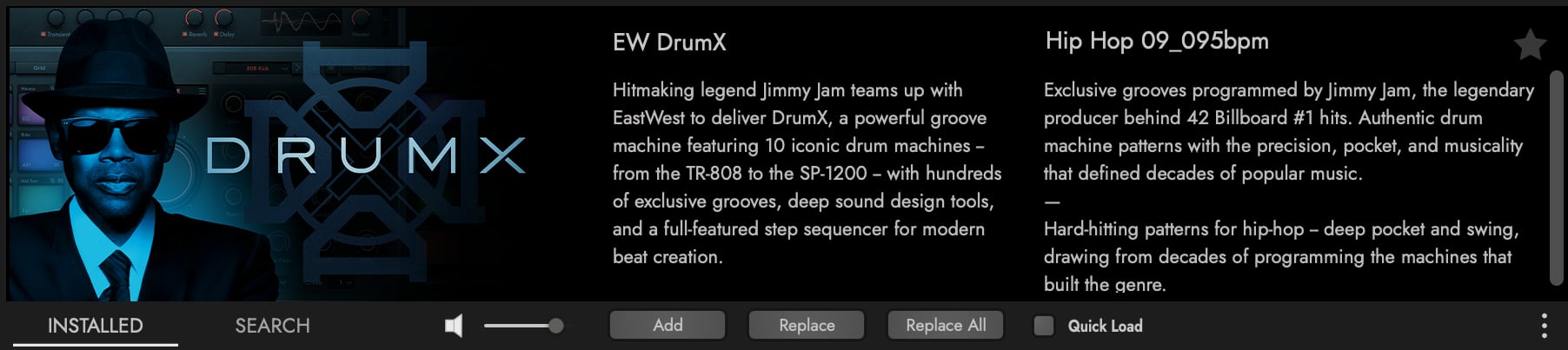
Above the column view, the Description Box and toolbar controls apply in both Installed and Search Modes.
- Description Box — When a library is selected (in either Installed or Search Mode), populates with the library description; when an instrument is selected in the Results List, populates with a short description of that instrument.
- Installed Mode / Search Mode toggle — switches between the two browsing modes (covered in §B and §C below).
- Audio Preview — When enabled, single-clicking an instrument in the Results List plays a short audio preview. The adjacent volume slider sets the preview level.
- Add / Replace / Replace All — Load the selected instrument three different ways:
- Add opens the instrument in a new rack space, preserving any already-loaded instruments.
- Replace swaps the currently focused rack space with the selected instrument.
- Replace All clears every rack space and loads the selected instrument fresh.
- Quick Load — When enabled, the instrument loads immediately in a purged state (no samples in memory); samples then stream in and load to memory as you play.
B Installed Mode
In Installed Mode, select EW DrumX in the Installed Libraries column to reveal its six Instrument Categories in the middle columns. Click a category to drill into its sub-categories (where applicable), populating the Results List on the right with instruments you can audition and load using the toolbar controls above.
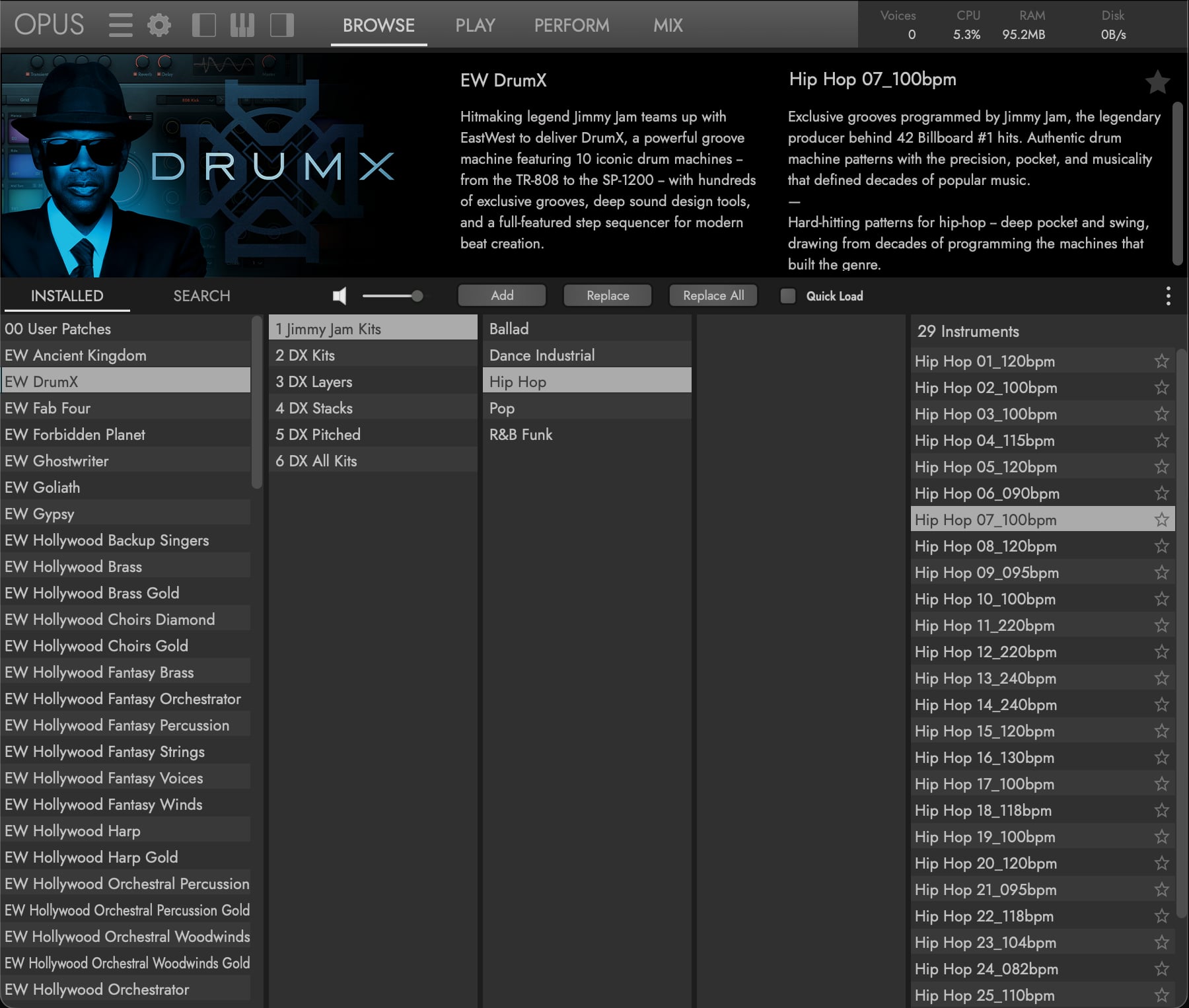
See SECTION 2.1.0 §B CATEGORY DETAILS for a per-category breakdown of what each folder contains.
C Search Mode
In Search Mode, the Attributes Header menu in the left-most column header switches between Category (default) — to scope the search to one of Opus’s top-level instrument categories (DrumX instruments are tagged under Drums & Percussion) — and Library, to scope the search to a single installed library (select EW DrumX for this product). With either selected, the Attribute Categories in the middle columns refine the results: Type (Drum Kits, Kick, Snare, etc.), Style (Ballad, Dance, Electronic, Funk, Hip Hop, Industrial, Pop, R&B), Articulation (Hits, Performance [BPM], Pitched), and Timbre (Analog, Tape, Warm, etc.). The matching instruments populate the Results List on the right.
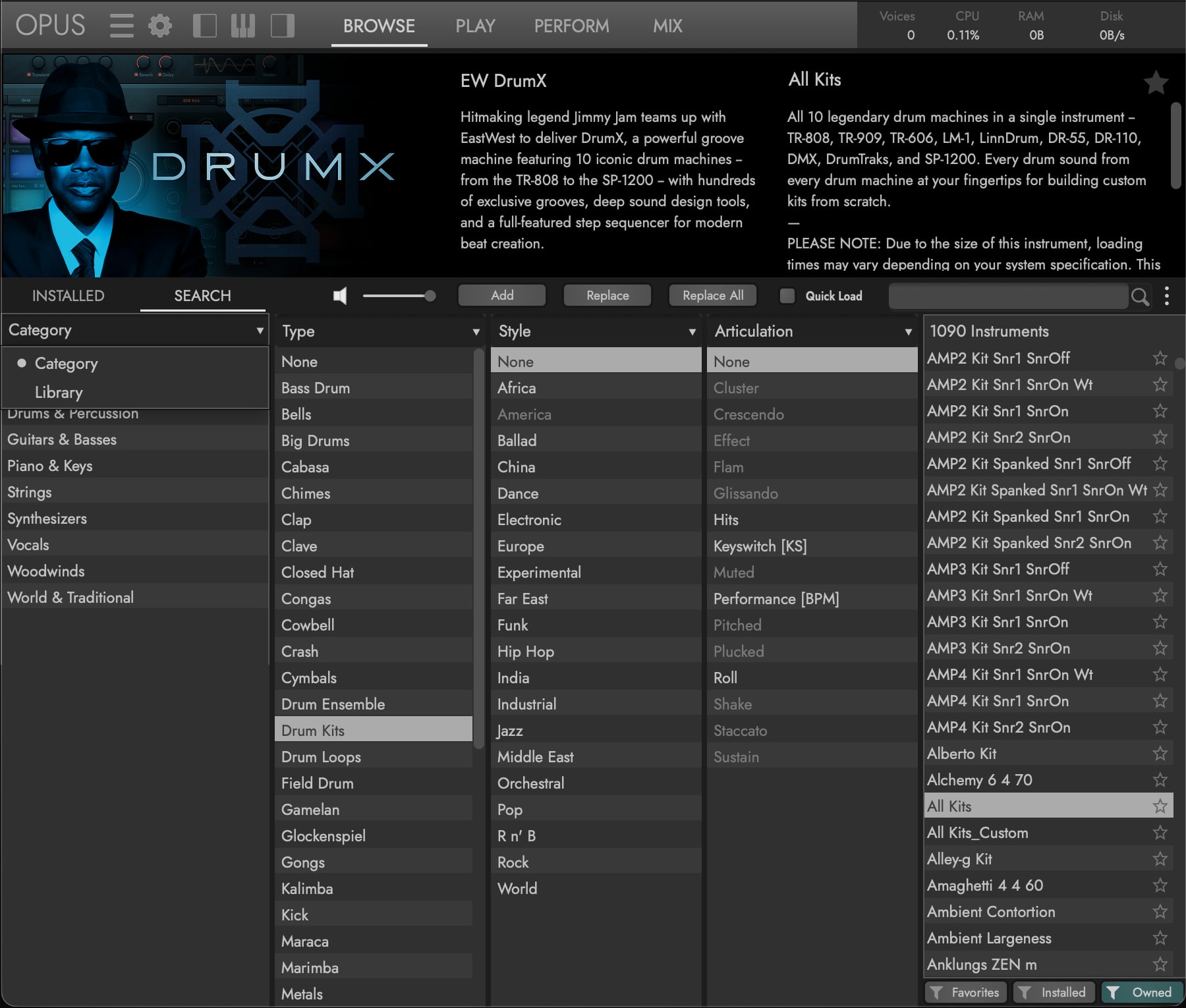
OPUS SOFTWARE MANUAL | SECTION 2.1 THE BROWSE PAGE for more details about browsing, previewing, and loading instruments.