2.3.4 Sections & Keyswitches
Every Score is really four arrangements in one. The same ten instruments, the same chord under your hands, but four different sets of rhythmic patterns, and you move between them from the five keys C1 to G1 while you play. This is the heart of composing with Hollywood Scoring Tools: you are not switching presets, you are moving a single arrangement through the shape of a piece of music.
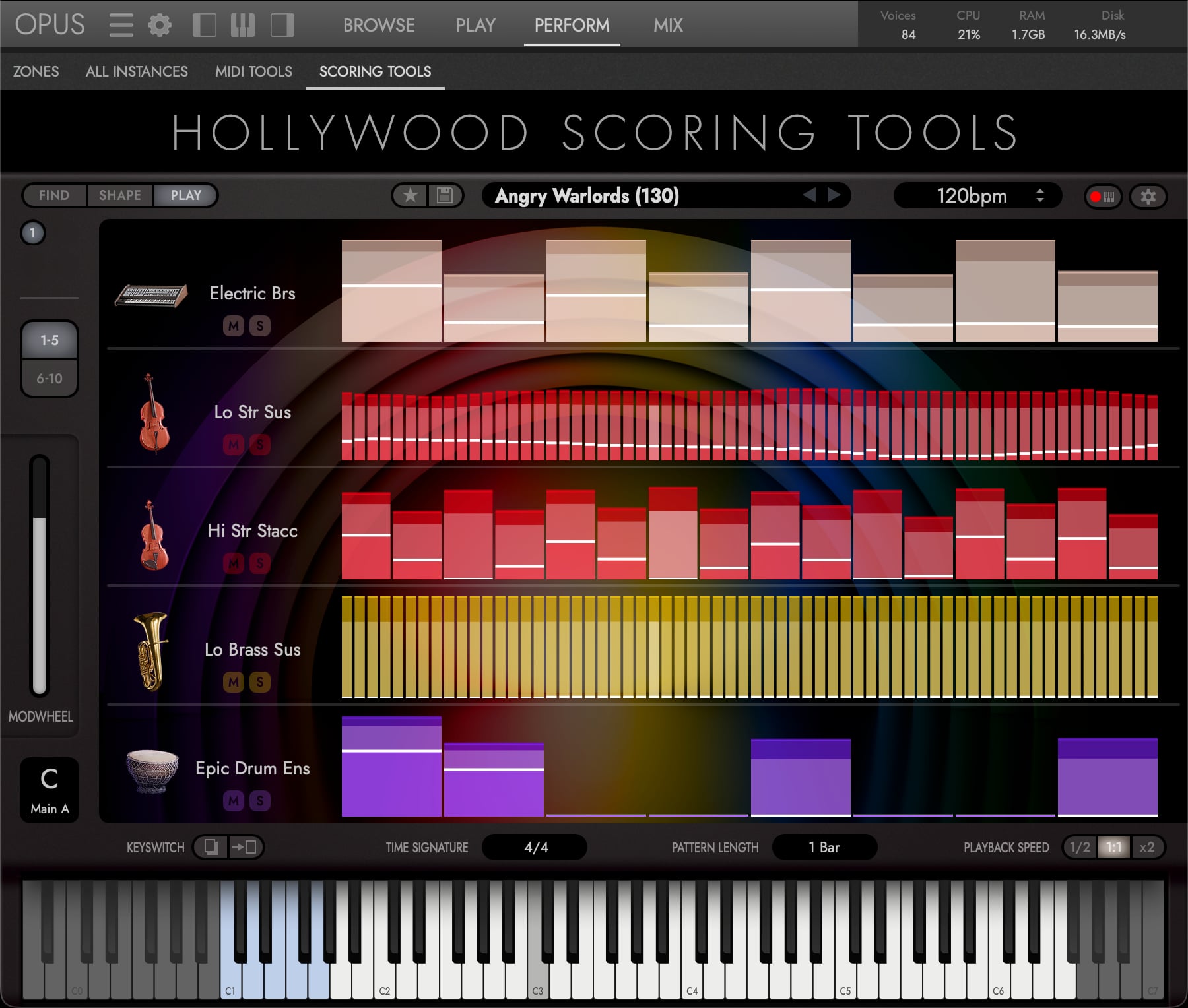
A The Four Sections and the Ending
Five keys, four sections. The fifth key is the Ending, which stops the arrangement rather than switching to another.
| Key | MIDI note | Section | What it holds |
|---|---|---|---|
| C1 | 36 | Intro | An opening, typically a less busy version of the same arrangement |
| D1 | 38 | Main A | The primary arrangement |
| E1 | 40 | Main B | An alternative arrangement: a variation, a lift, a contrast |
| F1 | 41 | Outro | A closing or transitional arrangement |
| G1 | 43 | Ending | Stops the arrangement rather than changing it. See D. Ending below |
Each of the four sections stores its own complete set of per-slot arpeggiator settings: for all ten slots, the note order, note rate, note selection, velocity pattern, custom pitch matrix, octave, repeat, and bar reset. That is forty independent pattern configurations inside a single Score, and it is why one Score can carry an entire piece rather than a single loop. Across the library it is why 300+ Scores amount to over 1,200 distinct arrangements.
Ending is the exception. It stores no patterns for any slot, so there is nothing in it to edit. It stops the arrangement instead of changing it, and is covered in D below.
PLEASE NOTE: C1 to G1 is the default placement, Oct +1 in the Settings overlay. The Keyswitch Position setting can move all five keys down one or two octaves; see E. Moving the Keyswitches below.
B Switching Sections While You Play
Hold a chord. The arrangement runs for exactly as long as you hold it. Release every note and all ten arpeggiators stop. This is the first thing to know about performing with Hollywood Scoring Tools: it plays while you hold, and it is silent when you don’t.
To move through a piece, keep holding your chord and tap a section key with a spare finger. The change takes effect on the very next step, not at the end of the bar. Press E1 halfway through a bar and Main B takes over from that point, continuing at the step position the pattern had already reached rather than restarting from the beginning.
A worked pass through a simple form:
- Hold your opening chord and tap C1. The Intro plays.
- Still holding, tap D1 when you want the main body. Main A takes over on the next step.
- Change chords freely: the pattern keeps running; only the notes it plays change.
- Tap E1 for the contrasting section, F1 to move into the Outro.
- Tap G1 to end. The arrangement plays out its current step and stops.
Intro and Outro are not one-shots that run once and hand back. They are simply sections, and the arrangement stays in whichever one you selected last until you choose another.
A Score opens on Main A. That is the arrangement each Score is built around, so you can hold a chord the moment it loads and hear the piece at its fullest. Intro, Main B and Outro are there when the music needs them.
C Where to See the Current Section
Two places show you where you are.
The Keyswitch selector sits in the lower-left corner of the Shape and Play tabs. It shows the section name, with the note letter of the last keyswitch key you pressed above it. It is also a dropdown: click it to change sections from the interface instead of from the keyboard, which is useful while editing.
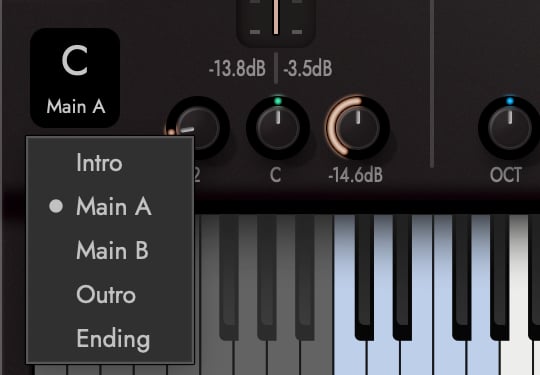
Opus also colours the five keyswitch keys on the on-screen keyboard, so you can always see where the switches are. This is particularly helpful after you have moved them to a different octave.
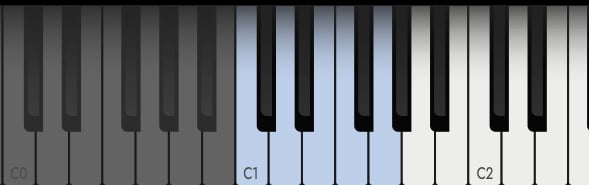
PLEASE NOTE: The note letter tracks the last section key you pressed, not the section itself, so it can lag behind when you change sections from the dropdown, or when a Score loads on a section you have not played. The section name underneath is always the accurate one.
D Ending
G1 stops the arrangement. It does not play a closing passage, and it does not switch to a fifth set of patterns. There are none. Each arpeggiator finishes the step it is on, releases its sustained notes, and stops.
It also latches. Until you select another section, the ending state stays armed: play a new chord and you will get a single step and silence again. To resume playing normally, select any of the four sections, from the keyboard or from the Keyswitch Selector.
PLEASE NOTE: After you press G1 the Keyswitch Selector reads “Ending”, but the Play tab continues to show and edit whichever section was active before. That is expected: Ending holds no patterns, so there is nothing for the Play tab to show.
E Moving the Keyswitches
The five keys occupy the whole span from C1 to G1, and every note in that span is silenced, including the three black keys between the switches, C#1, D#1 and F#1, which trigger nothing and sound nothing. Eight keys in all are reserved.
It only matters when you want to play down there: a low bass pedal, or a chord voiced near the bottom of the keyboard. If notes down there go missing, this is why.
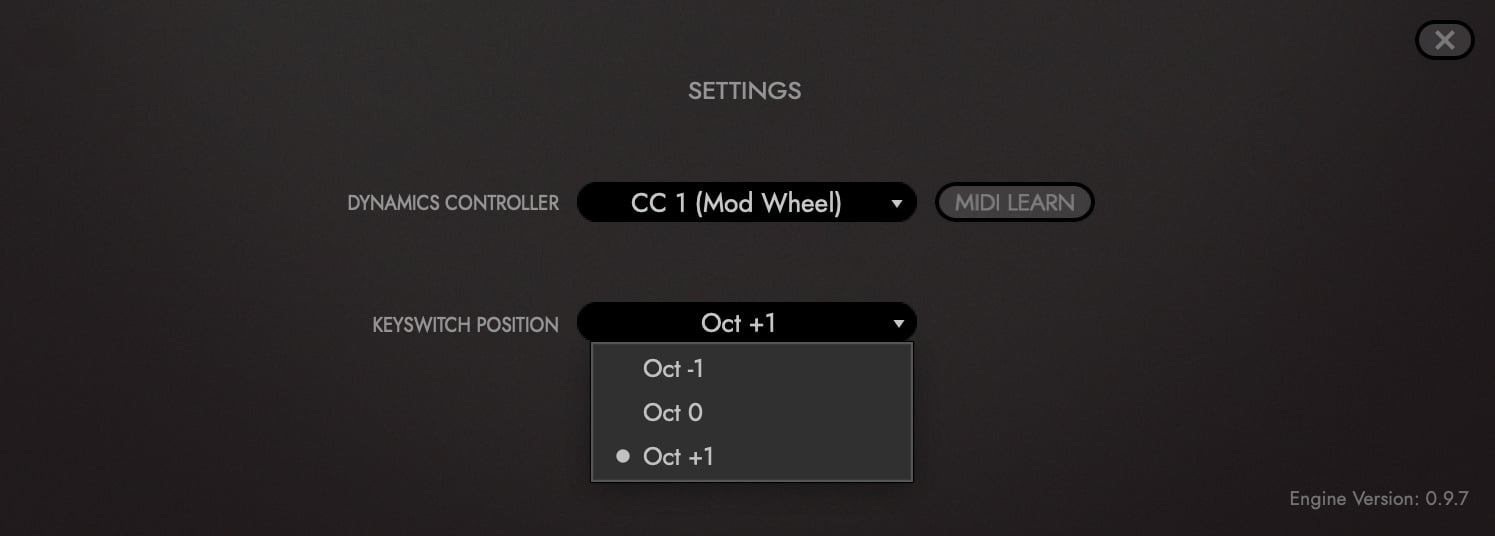
The fix is the Keyswitch Position control in the Settings overlay (the gear button, upper right):
| Setting | Keyswitches land on | MIDI notes | Silenced span |
|---|---|---|---|
| Oct -1 | C-1 – G-1 | 12 / 14 / 16 / 17 / 19 | 12–19 |
| Oct 0 | C0 – G0 | 24 / 26 / 28 / 29 / 31 | 24–31 |
| Oct +1 (default) | C1 – G1 | 36 / 38 / 40 / 41 / 43 | 36–43 |
Move them down when you need the low register to play. The setting applies to the whole instrument rather than to one Score, so it stays where you put it as you browse from Score to Score. The on-screen keyboard re-colours immediately, so you can always see where the switches went.
F What the Sections Mean for Editing
The per-slot controls on the Play tab edit the currently selected section only: Note Order, Rate, Note Selection, the Step Editor’s velocities, the Pitch Matrix, Octave, Repeat and Bar Reset are all per-slot and per-section. The Play tab’s global bar is the exception: Time Signature, Pattern Length and Playback Speed belong to the whole Score and apply to all four sections at once.
This is the single most important thing to understand before you start editing patterns. Program a slot under Main A, then tap E1, and the Play tab shows Main B’s patterns: your Main A work is intact, but you are no longer looking at it. Nothing was lost; you changed which of the four arrangements you are editing.
To seed one section from another, the Play tab’s Copy and Paste buttons move a whole section’s patterns across all ten slots at once, and a slot’s own Copy All / Paste All does the same for one slot. See SECTION 2.3.5 ARPEGGIATOR, F. Copy and Paste.
G Sections Are Not Articulations
The five keyswitches switch the whole arrangement, never an instrument’s articulation. Articulation is chosen by which instrument sits in a slot, so to turn a sustain into a staccato you change the instrument. See SECTION 2.2.1 ADDITIONAL CONTROLS, C. Why There Is No Articulations Sub-Page.