2.3.1 Controls Bar
The Controls Bar runs along the top of the Hollywood Scoring Tools interface and stays visible whichever tab is active. It groups the three navigation tabs, the Score Bar, the Tempo field, the MIDI Export button and the Settings button into a single strip.

- Find, Shape and Play tabs: switch the main panel between the Scoring Engine’s three views (Score Browser, Dynamic Mixer and Arpeggiator). See SECTION 2.3 SCORING ENGINE for each tab’s content.
- Score Bar: displays the currently loaded Score’s name. Click the name to open the Score Browser, and use the previous and next arrows beside it to step through the Scores. A Favorite star and a Save button sit to its left; a Score is named in the Save dialog.
- Tempo: sets the arrangement’s tempo when no host is driving Hollywood Scoring Tools, and shows the host’s BPM when one is. It is global: it feeds every slot’s arpeggiator rate and any tempo-synced effect parameter, a synced delay time or modulation rate.
- MIDI Export: where a finished performance is dragged out to your DAW. Its icon shows whether there is anything to drag: plain when nothing has been captured, a red dot while you play, and an arrow once a take is ready. See SECTION 2.3.5 ARPEGGIATOR, G. Exporting to Your DAW.
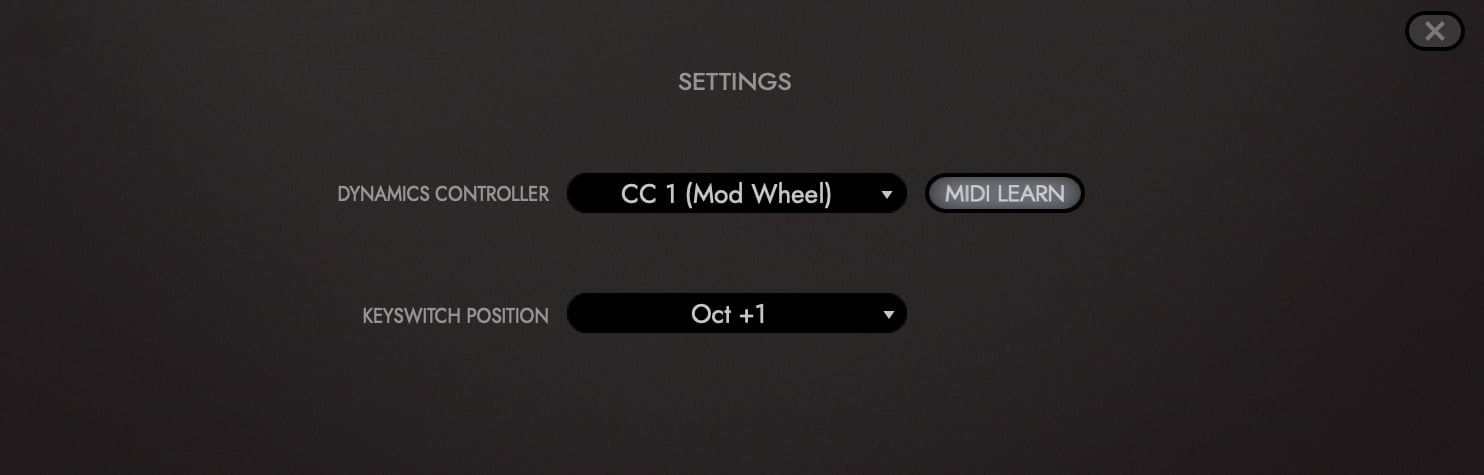
- Settings: opens the Settings overlay, which holds two global settings, a way to assign the first of them from your hardware, and a read-only version label. A close button dismisses the overlay and returns to the active tab.
| Control | Options | Function |
|---|---|---|
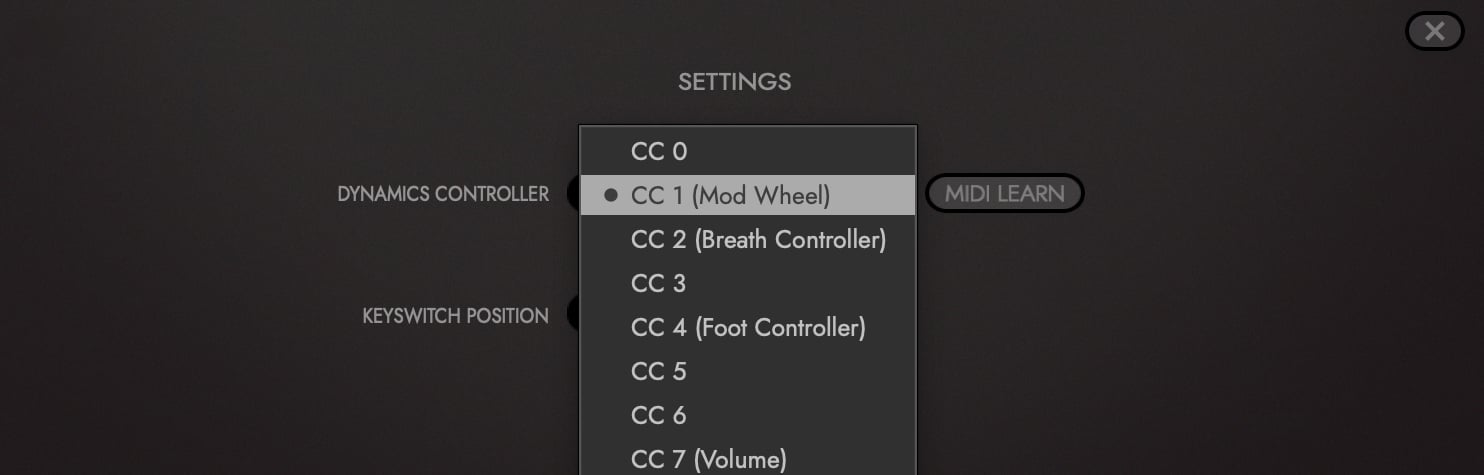
| Dynamics Controller | Any MIDI CC, CC 1 (Mod Wheel) by default | Selects which MIDI CC acts as the dynamics controller, which scales each slot’s live volume between its minimum and maximum settings |
| MIDI Learn | Assigns the Dynamics Controller from your hardware instead of the list | |
| Keyswitch Position | Oct -1, Oct 0, Oct +1 (default) | Moves the five section keyswitches an octave at a time. See SECTION 2.3.4 SECTIONS & KEYSWITCHES, E. Moving the Keyswitches |
| Engine Version | A read-only label showing the loaded engine version |
- Dynamics Controller: the menu lists every MIDI CC from 0 to 127, with the familiar ones named: CC 1 (Mod Wheel), CC 2 (Breath Controller), CC 4 (Foot Controller), CC 7 (Volume), CC 11 (Expression) and so on. Pick one and it takes over the job the mod wheel does by default, scaling every slot between its minimum and maximum volume.
To set it from the hardware instead, click MIDI Learn and move the knob, fader or wheel you want to use. The first controller message that arrives becomes the Dynamics Controller, and MIDI Learn switches itself off.
Both the Dynamics Controller and the Keyswitch Position are remembered, and come back in every new instance and every project.