2.3.2 Score Browser
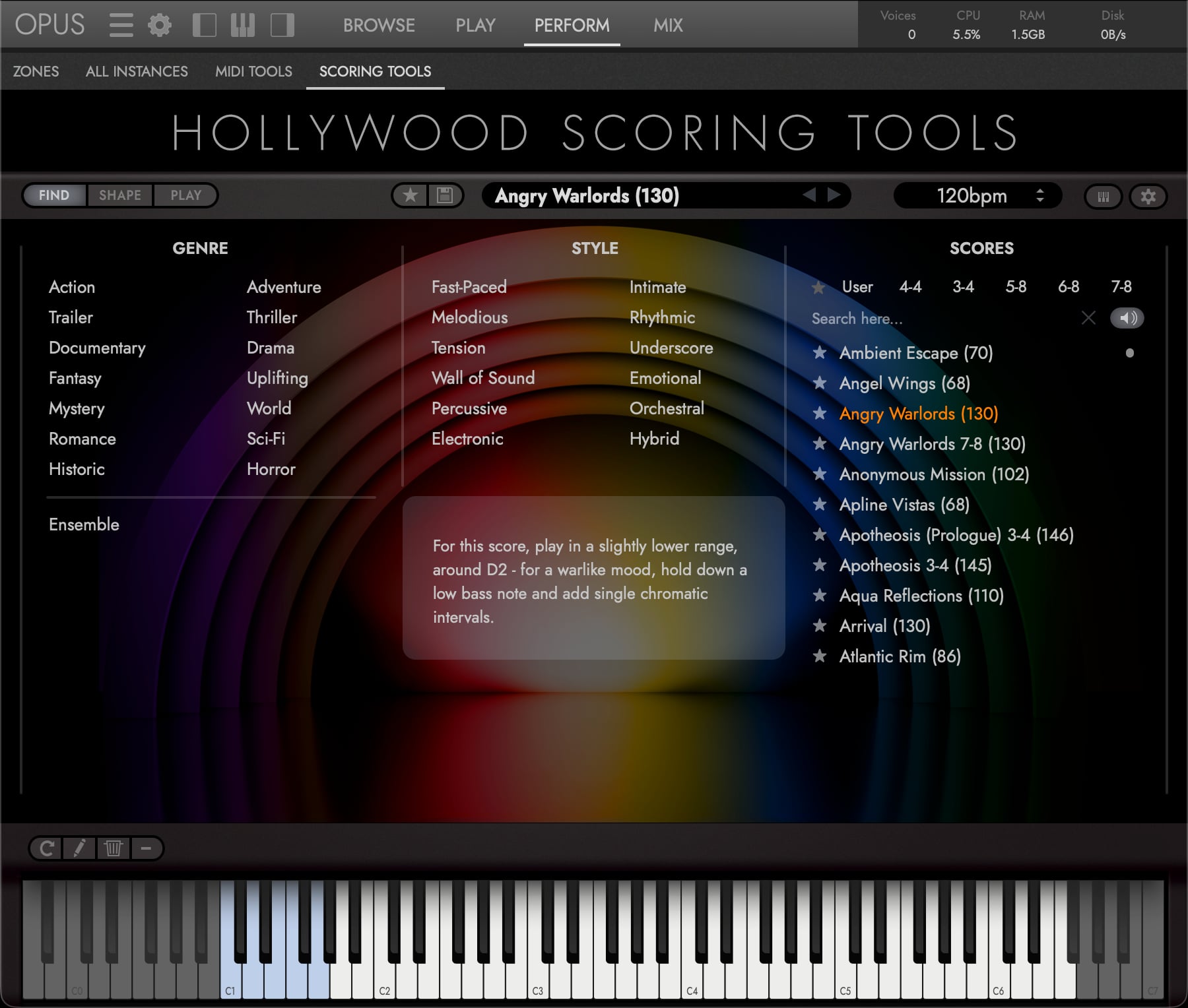
Click the Find tab at the top of the interface to open the Score Browser, your starting point for composing with Hollywood Scoring Tools. Its 300+ Scores are built from the library’s 164 instruments across Orchestral, Synth, Band, World and Misc, each one a complete ten-slot arrangement that plays from a single held chord. Browse them by genre, style and time signature, audition one with a click, and load it with a double-click.
A What Are Scores?
Scores are pre-built, fully animated multi-instrument arrangements. Each Score assigns instruments across up to 10 slots with per-slot arpeggiator configurations, dynamic ranges, and four sections plus an Ending. Press a key, move the mod wheel, and an entire arrangement comes alive. The number in a Score’s name is the tempo it was written for; playback itself follows your host.
Start with a Score that captures the mood you are after, then make it your own: change the instruments, reshape the dynamics, adjust the arpeggiator patterns, or save your customized version as a User Score.
To build an arrangement from nothing instead, load Empty Score. It opens the engine with empty slots and neutral global settings, ready for you to add instruments one at a time.
B Browsing, Searching and Filtering
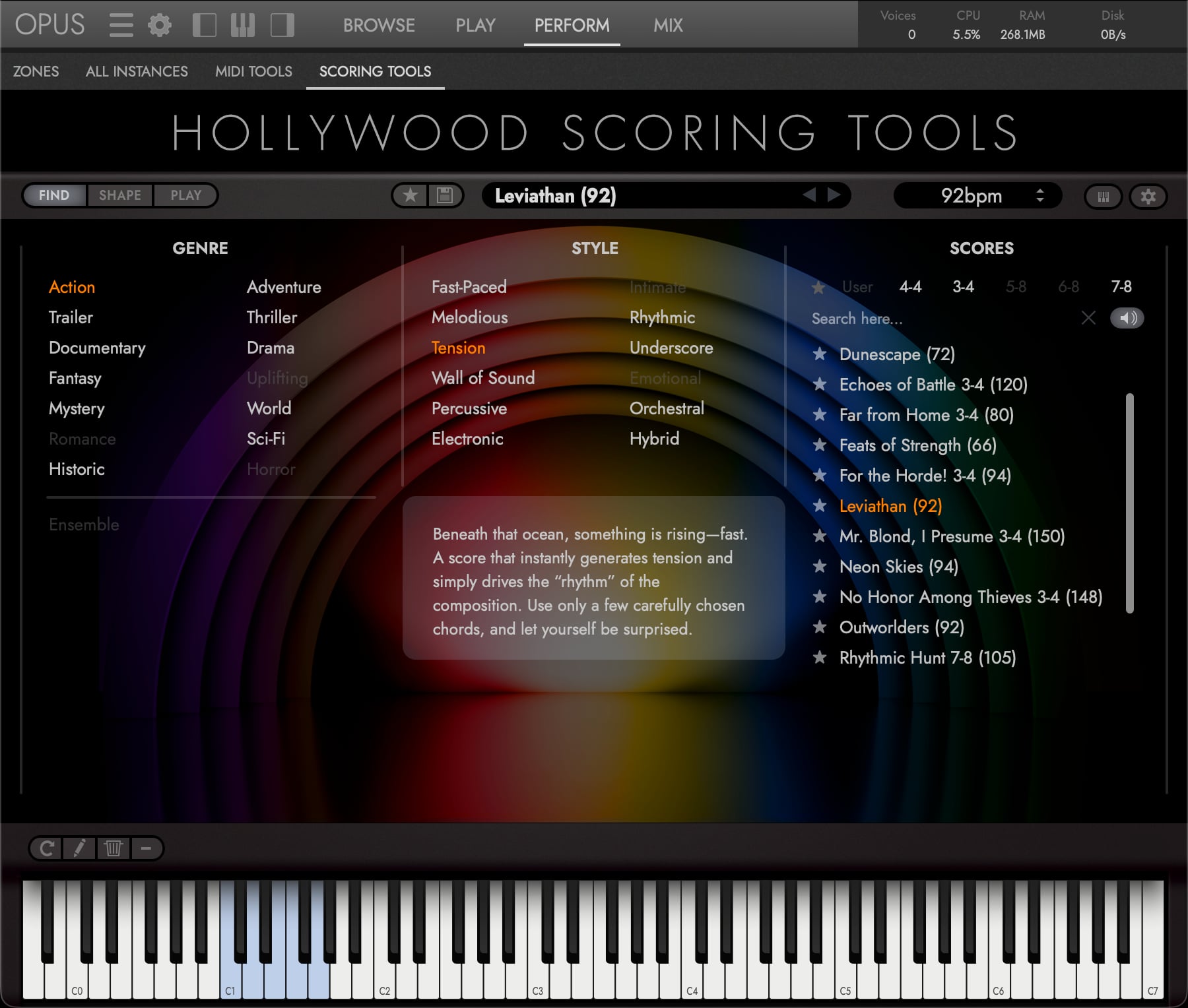
The Score Browser ships with 300+ factory Scores. Click any combination of Genre and Style tags to filter the list. Multiple tags can be selected simultaneously. The list narrows to show only Scores matching all selected tags. Click a selected tag again to deselect it, or use the Clear Tags button to reset all filters. It displays three columns:
- Genre: 14 genre tags
- Style: 12 style tags
- Scores: a scrollable list of matching Scores
PLEASE NOTE: Beneath the Genre list sits a separate Ensemble toggle. It narrows the list to the seven ensemble Scores: Big Orchestra and Fantasy Orchestra, each in a Sustain and a Staccato version, and World Ensemble as Mallet 8ths, Plucked 8ths and Strings 8ths. Each loads a whole section set up to be played as one instrument from the chord you hold, rather than to deliver a finished cue. They are the natural starting point for writing an arrangement of your own.
Type keywords in the Search field to find Scores by name. The search uses fuzzy matching, so partial words and approximate spellings will still return relevant results. To leave a search, click the clear button at the right end of the field. The query is dropped and the full list returns. Deleting the text by hand does the same.
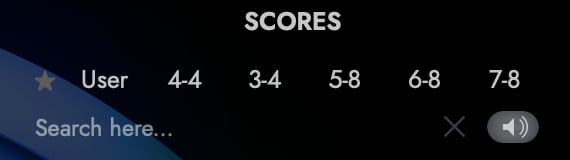
The Time Signature buttons above the Scores list (4-4, 3-4, 5-8, 6-8, 7-8) narrow the list to Scores in one meter, useful when you need a Score that matches your project’s rhythmic feel. Unlike the Genre and Style tags, they are single-select: clicking another meter replaces the current one rather than adding to it.
C Loading and Previewing
Click a Score once and you hear it; double-click to load it. Loading fills all ten slots with the Score’s instruments, arpeggiator patterns, sections and dynamic ranges.
The Preview button, the speaker icon to the right of the search field, controls the audition and is on by default; switch it off to browse in silence. The audition stops as soon as you load a Score, leave the browser, or start saving one of your own.
Stepping with the Previous/Next arrows in the Score Bar loads each Score outright, without auditioning it, so you can move through a filtered list without a preview firing on every step.
The Info Display shows the selected Score’s description: a sentence or two on its musical intent and on any mod-wheel or keyswitch behaviour worth knowing about. Every factory Score has one; a User Score you have not described reads This preset has no info.
D Favorites
Click the Favorites Tag button (star icon) on any Score to mark it as a favorite. Use the Favorites Filter to show only your favorited Scores for quick access to your go-to arrangements.
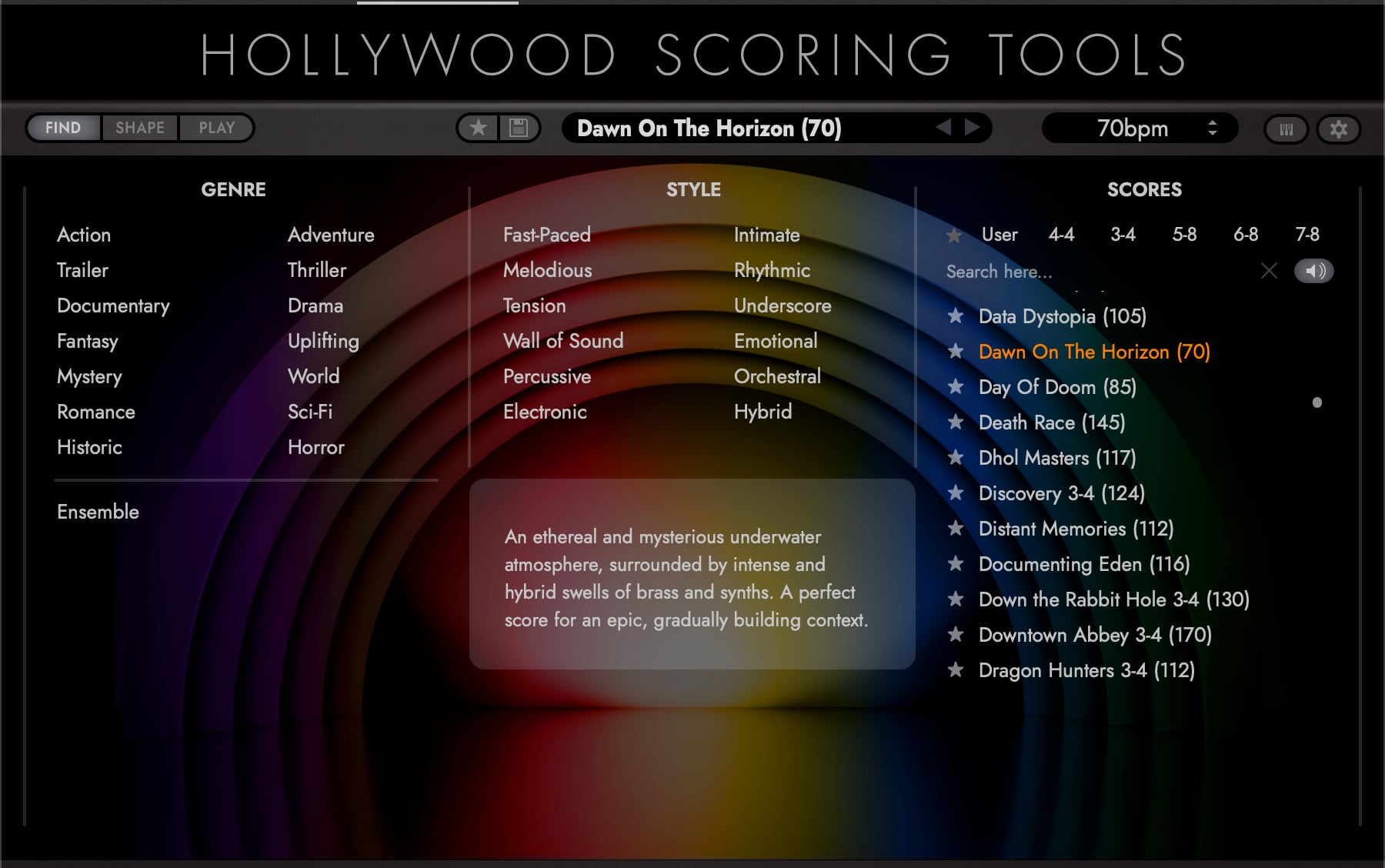
Factory Scores can be favorited as well as your own. Your favorites are kept together in a single favorites.json file in the same folder as your User Scores (see below), so they stay with you when you update Hollywood Scoring Tools, and deleting or renaming a User Score takes its favorite along with it.
E User Scores
Any arrangement you build can be saved as a User Score and lives right alongside the factory Scores in the browser:
-
Modify any Score to your liking, swap instruments, adjust the mixer, change arpeggiator patterns
-
Click the Save button in the Score Bar
-
Enter a name and assign Genre/Style tags, then confirm. Reusing an existing name prompts an overwrite confirmation
-
Your User Score is saved as a
.presetfile in Hollywood Scoring Tools’ own folder under your EastWest documents, and appears in the browser with a (User) suffix, a User Score beside the factory ones:- macOS:
Documents/East West/Presets/Hollywood Scoring Tools/ - Windows:
Documents\East West\Presets\Hollywood Scoring Tools\
Both folders are created the first time Hollywood Scoring Tools runs, not the first time you save.
- macOS:
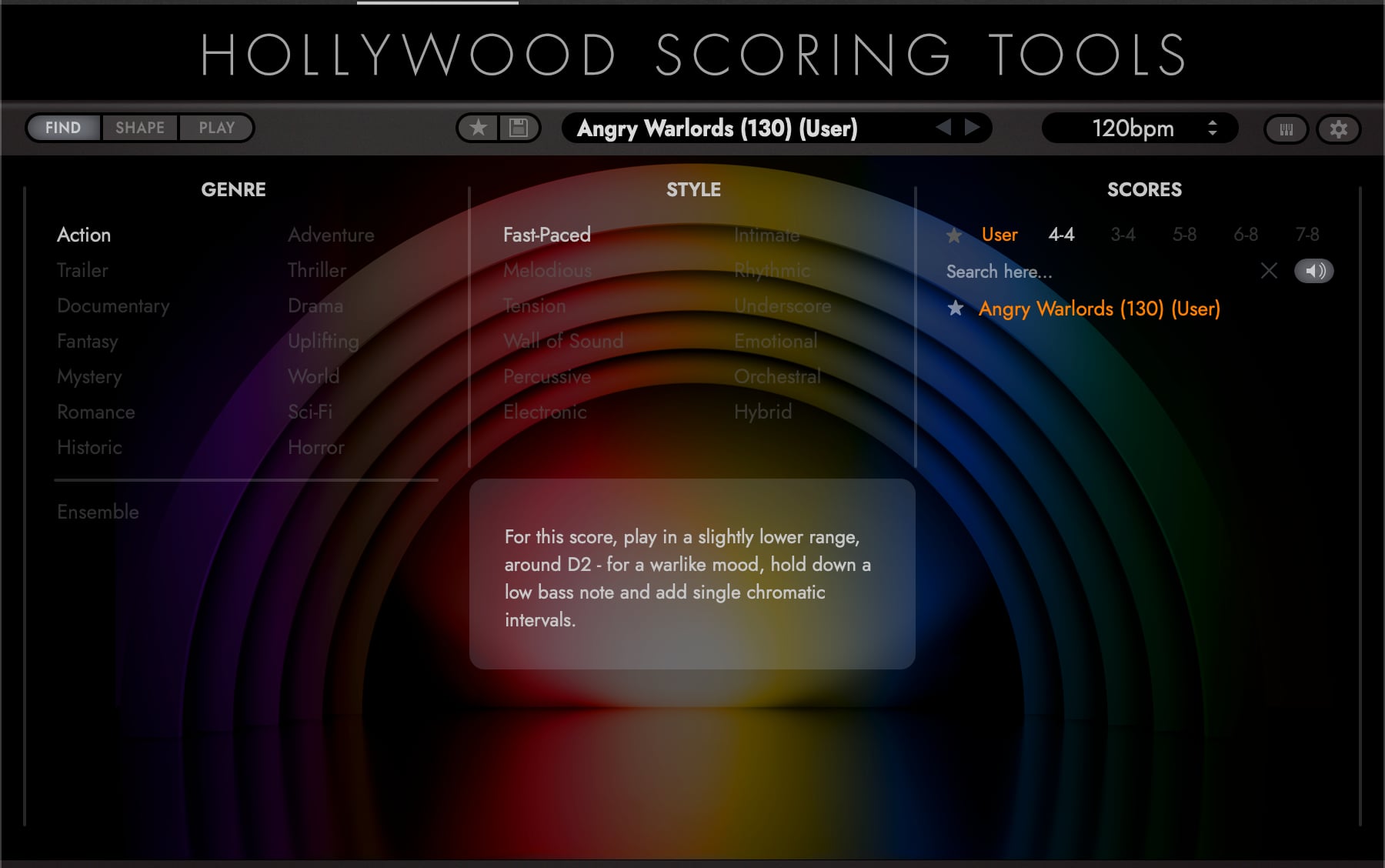
To see only your own arrangements, filter the browser by the User Filter.
Managing User Scores
The Score Tools buttons at the lower left of the browser manage your own Scores:
- Edit: revise a selected User Score’s name and tags, then save the changes back. The Edit button works as a toggle: click it again to leave editing without saving.
- Delete: permanently remove a selected User Score.
- Scan: rebuild the browser list from both the factory Scores inside the product and your own saved Scores in the folder above. Use it if you have added or removed Score files outside the plug-in.
PLEASE NOTE: Edit, Delete and Scan apply to your own User Scores only. The factory Scores are locked and cannot be overwritten or removed.